Mapping Scalar Values to Meshes
If required, you can map the scalar values from another object, such as an image, multi-ROI, or scalar mesh, to a selected mesh.
You should note that mapping from meshes is done with by closest face matching, while mapping from images and multi-ROIs is done through corresponding world coordinates. For best results, the number of distinct objects in the selected mesh and multi-ROI should be equivalent.
 How to Map Scalar Values from Another Object to a Mesh
- In the Data Properties and Settings panel, right-click the mesh that you want the map the scalar values to.
- Choose Mapping Scalar Values From in the pop-up menu.
The Choose Scalar Value Slots dialog appears.
- Choose the object — an image, multi-ROI, or mesh — that includes the scalar values you want to map from in the Object drop-down menu.
- Do one of the following:
- If you are mapping scalar values from a scalar mesh or multi-ROI, select the measurement(s) you want to map in the Slot drop-down menu.
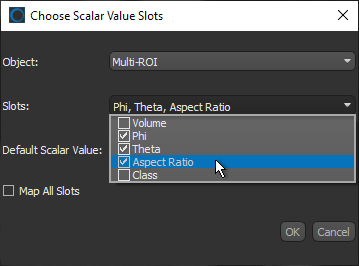
Note Check the Map All Slots option if you want to map all of the available measurements.
- If you mapping scalar values from an image, continue to the next step.
Note In this case, only the values of the image voxels will be mapped to the mesh.
- If you are mapping scalar values from a scalar mesh or multi-ROI, select the measurement(s) you want to map in the Slot drop-down menu.
- Select a default scalar value, if required.
- Click OK to map the measurement(s) to the selected mesh.
The mapped measurement(s) appear in the Measurement drop-down menu in the Scalar information box.
- Save your changes, if required (see Exporting Meshes).


